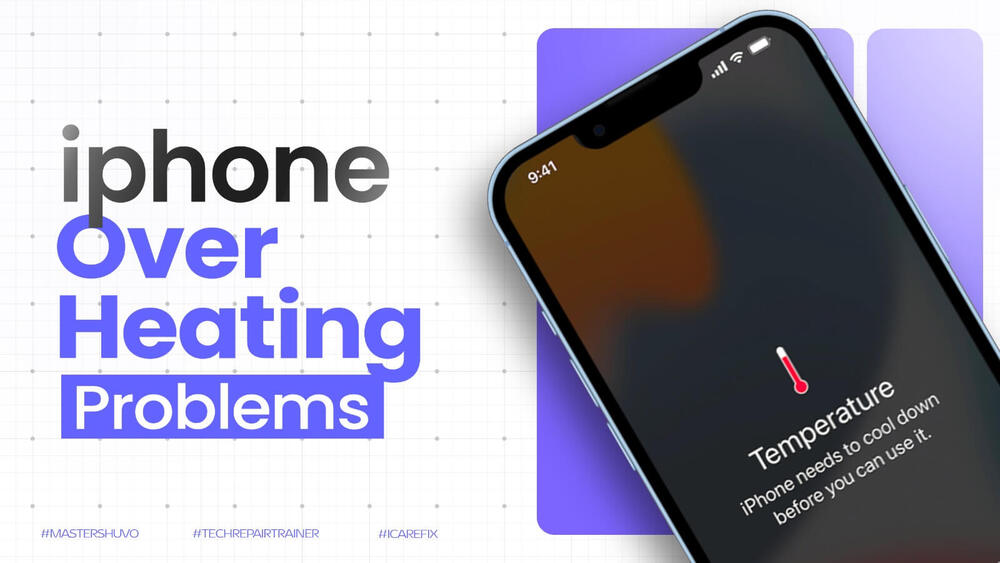
iPhone Overheating Problem: Causes, Prevention, and Effective Solutions
Understanding iPhone Overheating Problem
Is your iPhone getting uncomfortably hot? You’re not alone. The iPhone overheating problem is one of the most common issues that users face worldwide, and while it’s usually not a serious problem, it can affect your device’s performance, battery life, and long-term health. In this comprehensive guide, we’ll explore why your iPhone overheats and provide practical solutions to keep it running cool.
iPhones are designed to operate in environments between 0° and 35° C (32° to 95° F). When your device exceeds this range, it can trigger protective mechanisms that temporarily limit functionality. Understanding what causes overheating is the first step to preventing it and knowing when professional intervention is necessary.
How iPhone Temperature Management Works
Apple has built sophisticated thermal management systems into every iPhone:
Normal Operating Temperature:
- Ideal range: 16° to 22° C (62° to 72° F)
- Safe range: 0° to 35° C (32° to 95° F)
- Storage range: -20° to 45° C (-4° to 113° F)
Thermal Throttling: When your iPhone gets too hot, iOS automatically:
- Reduces processor speed
- Dims the display
- Disables camera flash
- Slows or stops charging
- Weakens cellular signal
- Shows temperature warning
These protective measures prevent permanent damage to internal components, but they also significantly impact usability.
Common Causes of iPhone Overheating
1. Environmental Factors
Direct Sunlight Exposure: Leaving your iPhone in direct sunlight, inside a hot car, or near heat sources can quickly raise its temperature. Even on a moderately warm day, the interior of a parked car can reach dangerous temperatures for electronic devices.
Temperature Statistics:
- A car’s interior can reach 60° C (140° F) in direct sunlight
- Dashboard temperatures can exceed 80° C (176° F)
- iPhone damage can occur above 45° C (113° F)
Hot Weather Considerations: In Chittagong’s hot and humid climate, particularly during summer months (April-September), iPhones are more susceptible to overheating when used outdoors or in non-air-conditioned environments.
2. Intensive App Usage
Resource-intensive applications push your iPhone’s processor to work harder, generating more heat:
High-Performance Apps:
- Gaming apps (PUBG Mobile, Call of Duty Mobile, Genshin Impact)
- Video editing software (iMovie, LumaFusion)
- Augmented reality apps (Pokémon GO, AR games)
- 3D rendering applications
- Live streaming apps
Continuous Usage:
- Streaming high-definition videos for extended periods
- Using GPS navigation for long drives
- Video calls (Zoom, FaceTime) for hours
- Recording 4K video continuously
- Using camera in ProRAW or ProRes modes
3. Software Issues
Outdated iOS Versions: Outdated iOS versions, buggy apps, or software glitches can cause your iPhone to work inefficiently, leading to excessive heat generation.
Common Software Problems:
- Background app refresh running continuously
- Location services active for multiple apps
- Automatic downloads and updates
- iCloud sync operations
- Stuck processes consuming CPU
- Indexing after iOS update
- App crashes causing system strain
iOS Bugs: Occasionally, iOS updates introduce bugs that cause overheating. Apple typically addresses these in subsequent patches.
4. Charging While Using
Using your iPhone while it’s charging, especially with resource-intensive tasks, generates heat from both the battery charging and the processor working.
Charging Heat Sources:
- Fast charging (20W or higher) produces more heat
- Wireless charging generates more heat than wired
- Using phone during charging compounds the problem
- Non-certified chargers can cause excessive heat
Safe Charging Practices:
- Avoid gaming while charging
- Remove thick cases during charging
- Charge in cool, ventilated area
- Use official Apple chargers
5. Poor Ventilation
Case-Related Issues: Thick cases, particularly those made of insulating materials, can trap heat around your device. Using your iPhone on soft surfaces like beds or couches can block ventilation ports and prevent heat dissipation.
Problematic Materials:
- Leather cases (poor heat dissipation)
- Thick silicone cases
- Wallet cases
- Cases with no ventilation cutouts
Best Case Options:
- Slim cases with heat-dissipating materials
- Cases with ventilation holes
- Mesh or perforated designs
- Removable cases for intensive use
6. Battery Problems
An aging or defective battery may overheat during charging or heavy use. If your iPhone’s battery health has significantly degraded, it might struggle to manage power efficiently, leading to heat buildup.
Battery Degradation Signs:
- Maximum capacity below 80%
- Unexpected shutdowns
- Rapid battery drain
- Slow charging
- Physical swelling (serious issue)
Battery Health Check: Go to Settings > Battery > Battery Health & Charging to check your battery’s condition.
7. Hardware Malfunctions
Internal Component Issues:
- Faulty power management IC
- Damaged charging port
- Defective battery
- Thermal paste degradation
- Failing processors or GPU
- Short circuits on logic board
These hardware issues require professional diagnosis and repair from experts like Master Shuvo in Chittagong.
Warning Signs Your iPhone Is Overheating
Critical Warning Message
Your iPhone will display a temperature warning screen if it gets too hot, accompanied by the message:
“The iPhone needs to cool down before you can use it.”
When this appears, only emergency calls are possible until the device cools down.
Other Warning Signs
Physical Symptoms:
- The device feels noticeably warm or hot to the touch (especially around camera area)
- Back glass becomes uncomfortably hot
- Heat concentrated in specific areas
Performance Issues:
- Slower performance or lagging
- Apps taking longer to open
- Stuttering or frame drops in games
- System-wide sluggishness
Display Problems:
- Screen dimming automatically
- Display going black unexpectedly
- Reduced brightness even at max setting
- Touch response becoming less accurate
Camera Limitations:
- Flash temporarily disabled
- Camera app closes unexpectedly
- Video recording stops automatically
- “iPhone needs to cool down” message in Camera app
Charging Issues:
- Charging slows significantly
- Charging stops completely
- Wireless charging becomes unavailable
- Battery percentage increases very slowly
Connectivity Problems:
- Cellular signal weakens or drops
- Wi-Fi performance degrades
- Bluetooth disconnections
- GPS accuracy decreases
Immediate Solutions When Your iPhone Overheats
1. Stop Using Your iPhone Immediately
Why This Works: The quickest way to cool down your device is to stop using it. Close all apps and let it rest. Avoid the temptation to continue using it, as this will only worsen the problem.
How to Force Close Apps:
- iPhone X and later: Swipe up and hold, then swipe apps away
- iPhone 8 and earlier: Double-click home button, swipe apps up
Complete Rest:
- Lock your iPhone
- Let it sit untouched for 10-30 minutes
- Don’t check it repeatedly
- Allow passive cooling
2. Remove the Case
Immediate Heat Dissipation: Take off any protective case to allow better air circulation. This simple step can significantly improve heat dissipation and can lower temperature by 5-10 degrees within minutes.
Case Considerations:
- Remove wallet cases completely
- Take off battery cases
- Remove any accessories
- Don’t replace case until fully cooled
3. Move to a Cooler Location
Proper Cooling Environment: Get your iPhone out of direct sunlight or hot environments. Place it in a cool, shaded area with good air circulation.
Safe Locations:
- Air-conditioned room
- Shaded indoor area
- Near (not directly in front of) a fan
- Cool surface like a marble countertop
NEVER DO THIS: Never put it in the refrigerator or freezer, as rapid temperature changes can cause condensation and damage internal components. This can lead to:
- Water damage to logic board
- Corrosion of internal components
- Screen adhesive failure
- Warranty void
4. Stop Charging
Why Charging Generates Heat: If your iPhone is plugged in, disconnect it immediately. Charging generates heat, and continuing to charge an already hot device can be harmful.
Charging Port Care:
- Unplug charging cable
- Remove wireless charging pad
- Let charging port cool down
- Resume charging only when device is cool
5. Turn on Airplane Mode
Reduce System Load: Activating Airplane Mode disables cellular, Wi-Fi, and Bluetooth connections, reducing the workload on your device and helping it cool down faster.
How to Enable:
- Swipe down from top-right (iPhone X and later)
- Swipe up from bottom (iPhone 8 and earlier)
- Tap airplane icon
- Or go to Settings > Airplane Mode
Additional Benefits:
- Stops background data usage
- Prevents app notifications
- Reduces power consumption
- Speeds up cooling by 30-40%
6. Reduce Screen Brightness
Instant Heat Reduction: Lower your screen brightness to minimum while cooling down. The display is a major heat generator.
Quick Brightness Control:
- Swipe to Control Center
- Drag brightness slider to minimum
- Or use Settings > Display & Brightness
7. Enable Low Power Mode
System-Wide Optimization: Low Power Mode reduces background activity and performance to conserve battery and reduce heat.
How to Enable: Go to Settings > Battery > Low Power Mode or enable from Control Center (if added).
Long-Term Prevention Strategies
1. Keep iOS Updated
Why Updates Matter: Apple regularly releases iOS updates that include performance optimizations and bug fixes. Keeping your iPhone updated ensures it runs as efficiently as possible.
How to Update: Go to Settings > General > Software Update and install available updates over Wi-Fi.
Update Benefits:
- Improved thermal management
- Bug fixes for overheating issues
- Optimized power consumption
- Enhanced battery management
- Security improvements
2. Manage Background App Activity
Reduce Unnecessary Background Work: Limit which apps can refresh in the background. Go to Settings > General > Background App Refresh and disable it for apps you don’t need updating constantly.
Strategic Disabling:
- Social media apps (refresh manually)
- News apps
- Shopping apps
- Games (never need background refresh)
- Email (set to fetch manually or hourly)
Keep Enabled For:
- Messaging apps (WhatsApp, Telegram)
- Navigation apps
- Health and fitness trackers
- Banking apps (for notifications)
3. Optimize Location Services
Location Tracking Drains Battery and Generates Heat: Review which apps have access to your location. Go to Settings > Privacy & Security > Location Services and set apps to “While Using” instead of “Always” when possible.
Location Settings:
- Never: For apps that don’t need location
- Ask Next Time: For occasional use apps
- While Using: For most apps
- Always: Only for essential apps (Find My, Home)
Additional Settings:
- Disable “Precise Location” for apps that don’t need it
- Turn off “Share My Location” if not needed
- Disable location-based Apple ads
4. Reduce Screen Brightness
Display Heat Generation: Lower your screen brightness or enable Auto-Brightness. Go to Settings > Display & Brightness and adjust accordingly. A dimmer screen generates less heat and saves battery life.
Optimal Settings:
- Enable Auto-Brightness
- Keep manual brightness at 40-60%
- Use Dark Mode (reduces heat on OLED screens)
- Reduce Auto-Lock time to 30 seconds
5. Avoid Direct Sunlight
Environmental Protection: Never leave your iPhone in direct sunlight for extended periods. When using GPS navigation in your car, keep your device out of direct sunlight and ensure good air circulation.
Car Usage Tips:
- Use dashboard mount away from windshield sun exposure
- Turn on car AC before using GPS
- Use sunshade when parked
- Never leave iPhone in hot car
- Consider ventilated phone mounts
6. Use Official or Certified Chargers
Charging Safety: Always use Apple-certified charging cables and adapters. Third-party chargers that don’t meet quality standards can cause charging inefficiencies and overheating.
Certified Options:
- Original Apple chargers
- MFi (Made for iPhone) certified cables
- Reputable brands (Anker, Belkin, Aukey)
- Check for certification mark
Avoid:
- Cheap knockoff chargers
- Uncertified fast chargers
- Damaged cables
- Frayed or exposed wires
7. Disable Unused Features
Power-Saving Features: Turn off features you’re not actively using, such as AirDrop, Bluetooth, or Wi-Fi when not needed. These features constantly search for connections, consuming power and generating heat.
Disable When Not Needed:
- AirDrop (set to Receiving Off)
- Bluetooth
- Wi-Fi (in areas without connection)
- Personal Hotspot
- Automatic Downloads
- Background App Refresh
- Hey Siri (use Type to Siri instead)
8. Monitor Battery Health
Regular Health Checks: Check your battery’s condition regularly. Go to Settings > Battery > Battery Health & Charging. If your maximum capacity is below 80%, consider getting a battery replacement.
Battery Health Indicators:
- 100-80%: Excellent, normal performance
- 79-70%: Consider replacement soon
- Below 70%: Replacement highly recommended
Where to Get Battery Replaced: For iPhone users in Chittagong, Master Shuvo provides professional battery replacement services with genuine parts.
9. Choose Breathable Cases
Case Selection: If you use a protective case, opt for designs that allow heat dissipation. Avoid thick, insulating cases, especially during summer months or when using your iPhone intensively.
Recommended Case Types:
- Slim hard shell cases
- Cases with ventilation holes
- Heat-dissipating materials (aluminum, graphene)
- Perforated or mesh designs
- Easily removable cases
Avoid:
- Thick leather cases
- Multiple layers (case + skin)
- Wallet cases during intensive use
- Completely enclosed cases
10. Restart Your iPhone Regularly
Clear Temporary Files: Restart your iPhone weekly to clear temporary files and refresh system processes that may be consuming resources.
How to Restart:
- iPhone X and later: Press and hold Side + Volume button, slide to power off
- iPhone 8 and earlier: Press and hold Top button, slide to power off
- Wait 30 seconds, then power back on
Benefits:
- Clears RAM
- Stops stuck background processes
- Refreshes system services
- Improves overall performance
Hardware Issues Causing Overheating
Common Hardware Problems
While many overheating issues are software or environmental, sometimes hardware malfunctions are the root cause:
1. Battery Failure
Symptoms:
- iPhone extremely hot even when idle
- Battery drains in hours instead of full day
- Physical swelling visible
- Random shutdowns
- Slow charging or not charging
Solution: Requires professional battery replacement. Never attempt DIY battery replacement.
2. Charging Port Damage
Symptoms:
- Heat concentrated around bottom of iPhone
- Intermittent charging
- Cable doesn’t fit properly
- Debris or damage visible in port
Solution: Professional cleaning or port replacement needed.
3. Water Damage
Symptoms:
- Overheating started after liquid exposure
- Erratic behavior
- Corrosion visible in ports
- Face ID or Touch ID not working
Solution: Requires immediate professional cleaning and logic board repair. Time-sensitive issue.
4. Logic Board Issues
Symptoms:
- Specific area of iPhone gets very hot
- Random reboots and crashes
- Multiple features not working
- Overheating started suddenly without cause
Solution: Chip-level diagnosis and repair required. Master Shuvo specializes in iPhone logic board repairs.
5. Faulty Power Management IC
Symptoms:
- iPhone hot around camera area
- Charging problems
- Battery percentage jumping
- Device won’t turn on
Solution: Requires microsoldering expertise for IC replacement.
When to Seek Professional Help
While occasional mild heating is normal, you should contact Apple Support or visit a professional repair center if:
Critical Symptoms Requiring Professional Attention
- Frequent Overheating During Normal Use
- iPhone gets hot even with basic tasks (texting, browsing)
- Heat occurs in cool environments
- Problem persists after trying all software solutions
- Multiple apps cause immediate overheating
- Temperature Warning Appears Regularly
- Warning screen shows daily or multiple times per week
- iPhone becomes unusable due to heat
- Cooling takes longer than 30 minutes
- Warning appears in normal temperature environments
- Overheating When Idle
- Device heats up when locked and unused
- Significant heat even overnight
- Hot to touch when just sitting on table
- Battery drains rapidly when idle
- Battery Issues
- Battery drains unusually fast (less than 4-5 hours of use)
- Battery health below 80%
- Physical swelling visible
- Charging extremely slow or not at all
- Battery percentage jumps erratically
- Physical Damage Visible
- Screen lifting from frame
- Back glass separating
- Warping or bending of chassis
- Corrosion in ports
- Discoloration on device
- iPhone Won’t Turn On After Overheating
- Device shut down from heat and won’t restart
- Shows Apple logo but doesn’t boot
- Stuck in boot loop
- Completely unresponsive
- Hardware-Specific Heat
- Heat concentrated in one specific area
- Camera area extremely hot
- Charging port area burning hot
- Heat patterns changed recently
Professional Repair Services in Chittagong
For iPhone users in Chittagong experiencing persistent iPhone overheating problem, Master Shuvo provides expert diagnosis and repair:
Services Offered:
- Comprehensive iPhone diagnostics
- Battery replacement with genuine parts
- Logic board chip-level repair
- Water damage recovery
- Power management IC replacement
- Charging port repair
- Complete thermal management solutions
Why Choose Master Shuvo:
- Certified Engineer
- 10,000+ satisfied customers
- Advanced diagnostic equipment
- Transparent pricing
- Warranty on all repairs
- Same-day service available
Myths About Cooling Your iPhone
Myth 1: Put It in the Freezer
THE TRUTH: Never place your iPhone in the refrigerator or freezer. Extreme temperature changes can cause internal condensation, potentially damaging electronic components and voiding your warranty.
Why It’s Dangerous:
- Condensation forms inside device
- Water droplets damage logic board
- Adhesives fail from temperature shock
- Screen may separate from body
- Immediate warranty void
What Happens: Even if your iPhone seems fine initially, condensation can cause corrosion that leads to failure weeks or months later.
Myth 2: Blow on It or Use a Fan Directly
THE TRUTH: While moving air can help, placing your iPhone directly in front of a powerful fan or blowing on it won’t significantly speed up cooling and might introduce dust into ports.
Better Approach:
- Place in room with gentle air circulation
- Keep at arm’s length from fan
- Ensure no dust blowing toward device
- Natural convection cooling is safer
Myth 3: Remove All Apps
THE TRUTH: You don’t need to delete all your apps. Instead, identify which ones are most resource-intensive and manage their background activity or usage patterns.
Smart Approach:
- Check Battery settings to see which apps use most power
- Close apps you’re not using
- Manage background refresh settings
- Delete only problematic or unused apps
Myth 4: Rice Will Fix Water Damage Heat Issues
THE TRUTH: Rice doesn’t fix water damage and doesn’t help with overheating. It’s a myth that wastes crucial time.
Reality:
- Rice doesn’t draw out moisture effectively
- Delays proper professional repair
- Allows corrosion to worsen
- Can introduce dust and debris
Correct Action: If water damage is suspected, immediately power off and take to a professional like Master Shuvo for ultrasonic cleaning and logic board repair.
Myth 5: All Heat Is Bad
THE TRUTH: Mild warmth during charging or intensive use is completely normal. Modern smartphones generate heat during operation.
Normal Heat:
- Slightly warm during charging
- Warm during gaming or video recording
- Warm after iOS update (indexing)
- Warm during initial setup or restore
Problematic Heat:
- Too hot to comfortably hold
- Heat when idle
- Triggers temperature warning
- Causes system slowdowns
Best Practices for iPhone Care
Maintaining your iPhone properly can prevent overheating and extend its lifespan:
Temperature Management
Daily Habits:
- Avoid extreme temperatures (both hot and cold)
- Don’t leave in parked car
- Keep out of direct sunlight
- Use in air-conditioned environment during hot weather
- Store in cool, dry place
Chittagong Climate Considerations: Given Chittagong’s hot and humid climate, especially April-September:
- Use phone in AC when possible
- Avoid prolonged outdoor use in midday heat
- Remove case during intensive use
- Keep phone in bag when walking outside
- Use sunshade in car
Usage Patterns
Give Device Regular Breaks:
- Don’t use continuously for hours
- Take 5-10 minute breaks during gaming
- Stop using if device gets warm
- Close apps between tasks
- Allow cooling between intensive sessions
Smart Charging:
- Charge overnight when device is idle
- Remove thick cases during charging
- Don’t use phone while charging
- Charge in cool, ventilated area
- Unplug when 100% charged
Maintenance Routines
Keep Your iPhone Clean:
- Clean charging port monthly (gently with toothpick)
- Wipe speakers and grilles
- Remove lint and dust from ports
- Clean camera lenses
- Wipe down entire device weekly
Software Maintenance:
- Restart iPhone weekly to clear temporary files
- Update iOS when available
- Update apps regularly
- Clear Safari cache monthly
- Delete unused apps
Battery Care:
- Perform a full charge cycle (0% to 100%) monthly to calibrate battery
- Use Optimized Battery Charging feature
- Enable Low Power Mode when battery is running low
- Avoid constant charging above 80%
- Don’t let battery drain to 0% frequently
Storage Management
Free Up Space:
- Keep at least 10% storage free
- Delete old photos and videos
- Offload unused apps
- Clear message attachments
- Use iCloud for photo storage
Why It Matters: Low storage forces systems to work harder, generating more heat and slowing performance.
Settings Optimization
Battery-Saving Settings:
- Enable Auto-Brightness
- Use Dark Mode on OLED iPhones
- Reduce motion effects (Settings > Accessibility > Motion)
- Disable app analytics and diagnostics
- Limit ad tracking
- Turn off automatic downloads
Network Settings:
- Use Wi-Fi instead of cellular when available
- Disable Wi-Fi when not in use
- Turn off Bluetooth when not needed
- Use Airplane Mode in low signal areas
- Disable Personal Hotspot when unused
Frequently Asked Questions
1. Is it normal for my iPhone to get warm?
Answer: Yes, mild warmth during certain activities is completely normal and expected:
Normal Warmth Occurs:
- During initial setup or restoring from backup
- While charging (especially fast charging)
- When using GPS navigation
- During gaming or video recording
- While updating iOS or apps
- First few hours after iOS update (indexing)
- During FaceTime or video calls
Concerning Heat:
- Too hot to hold comfortably
- Heat when idle and locked
- Triggers temperature warning
- Causes performance throttling
- Occurs during simple tasks like browsing
If your iPhone regularly exceeds normal warmth levels, investigation is needed.
2. How can I tell if my iPhone overheating problem is serious?
Answer: Assess severity using these indicators:
Minor/Normal (No Action Needed):
- Occasional warmth during intensive use
- Cools down quickly (5-10 minutes)
- No performance impact
- No warning messages
Moderate (Monitor Closely):
- Warm more frequently than before
- Takes 15-30 minutes to cool
- Slight performance slowdown
- Happens with moderate use
Serious (Seek Professional Help):
- Temperature warning appears
- Hot even when idle
- Physical swelling visible
- Won’t turn on after overheating
- Multiple daily occurrences
- Battery draining rapidly
For serious iPhone overheating problems in Chittagong, contact Master Shuvo for professional diagnosis.
3. Can overheating damage my iPhone permanently?
Answer: Generally, no if addressed properly. iPhones have built-in protection:
Protection Mechanisms:
- Automatic thermal throttling
- Temperature warning system
- Charging stops when too hot
- Emergency-only mode activation
- Automatic shutdown at critical temperature
Potential Long-Term Damage:
- Battery degradation accelerates
- Component lifespan reduces
- Solder joints may weaken over time
- Adhesives can fail with repeated extreme heat
Permanent Damage Rare: Apple designs iPhones to protect themselves. However, repeatedly ignoring temperature warnings or exposure to extreme heat can cause cumulative damage.
4. Why does my iPhone overheat while charging?
Answer: Charging naturally generates heat, but excessive heat indicates problems:
Normal Charging Heat:
- Mild warmth is expected
- Fast charging produces more heat
- Wireless charging generates more heat than wired
Excessive Charging Heat Causes:
- Using phone during charging (especially gaming)
- Thick case trapping heat
- High ambient temperature
- Faulty charger or cable
- Damaged charging port
- Battery problems
- Power management IC failure
Solutions:
- Remove case while charging
- Don’t use phone during charging
- Use official Apple charger
- Charge in cool area
- If problem persists, get professional diagnosis
5. Where can I get an iPhone overheating problem fixed in Chittagong?
Answer: For professional iPhone overheating problem fix in Chittagong, Master Shuvo offers comprehensive services:
Why Choose Master Shuvo:
- Apple Certified Engineer: Professional training and expertise
- Advanced Diagnostics: Identifies root cause accurately
- Chip-Level Repair: Can fix logic board and IC issues
- Genuine Parts: Quality batteries and components
- Fast Service: Many repairs completed same-day
- Warranty Coverage: All repairs backed by warranty
- 10,000+ Customers: Proven track record
Services for Overheating:
- Complete diagnostic testing
- Battery replacement
- Logic board repair
- Charging port cleaning/replacement
- Power IC replacement
- Water damage recovery
- Thermal management solutions
Contact: Visit www.mastershuvo.com or bring your iPhone to iCareFix in Chattogram for free diagnosis.
6. How long should I wait for my iPhone to cool down?
Answer: Cooling time varies by severity:
Mild Warmth:
- 5-10 minutes in cool environment
- Simply stop using and lock screen
Moderate Heat:
- 15-30 minutes
- Remove case, move to AC room
- Turn on Airplane Mode
Severe Overheating (Warning Shown):
- 30-60 minutes
- Complete rest required
- Must cool naturally
- Don’t force cooling
Accelerate Cooling:
- Stop all use immediately
- Remove case
- Move to air-conditioned room
- Place on cool (not cold) surface
- Enable Airplane Mode
- Lock device
Never Rush Cooling: Don’t use the freezer, ice, or fans directly on the device.
7. Will replacing my battery fix overheating issues?
Answer: It depends on the cause:
Battery-Related Overheating: If battery health is below 80% or battery is degraded, replacement often solves overheating problems.
When Battery Replacement Helps:
- Heat during charging
- Battery swelling present
- Rapid battery drain
- Battery health significantly degraded
- Heat concentrated on back of phone
When It Won’t Help:
- Software-related overheating
- Logic board issues
- Faulty power management IC
- Environmental causes
- App-related problems
Proper Diagnosis: Master Shuvo provides free diagnostics to determine if battery replacement will resolve your specific overheating issue before proceeding with repair.
8. Does using an iPhone while charging cause overheating?
Answer: Yes, significantly:
Why It Causes Heat:
- Battery generates heat while charging
- Processor generates heat during use
- Combined heat accumulates faster than it dissipates
- Fast charging compounds the problem
Most Problematic Activities:
- Gaming (highest heat generation)
- Video recording
- Video calls
- GPS navigation
- Streaming high-resolution video
Best Practice:
- Charge when not using phone
- If urgent use needed, do light tasks only
- Remove case during charging
- Use in cool environment
Exception: Using for emergency calls or messages briefly while charging is generally safe.
9. Can iOS updates cause overheating?
Answer: Temporarily, yes, and here’s why:
Post-Update Indexing:
- First 24-48 hours after update, iPhone indexes files
- Spotlight search rebuilds database
- Photos app processes images
- iCloud syncs data
- Background optimization occurs
Normal Behavior: This temporary overheating is completely normal and will resolve within 1-2 days.
Persistent Problems: If overheating continues beyond 48 hours after update:
- Buggy iOS version may be cause
- Check online forums for similar reports
- Wait for Apple to release patch
- Restore iPhone if problem severe
Prevention:
- Update overnight when not using phone
- Ensure iPhone is plugged in and cool
- Don’t use intensively during first day after update
10. What should I do if my iPhone shows a temperature warning?
Answer: Follow these immediate steps:
Step-by-Step Response:
- Stop Using Immediately
- Don’t try to continue using
- Close any open apps
- Lock the screen
- Move to Cool Location
- Get out of heat immediately
- Find air-conditioned space
- Avoid direct sunlight
- Remove Case and Disconnect Charger
- Take off protective case
- Unplug charging cable
- Remove from wireless charger
- Enable Airplane Mode
- Reduces system load
- Stops background processes
- Speeds cooling
- Wait Patiently
- Don’t check phone repeatedly
- Allow 30-60 minutes cooling time
- Device will notify when ready
- Don’t Force Cool
- Never use refrigerator or freezer
- Don’t place on ice
- Avoid extreme cooling methods
After Cooling:
- Check what caused overheating
- Adjust usage patterns
- If recurring, seek professional help
Professional iPhone Repair Services in Chittagong
If you’re experiencing persistent iPhone overheating problems in Chittagong, Master Shuvo at iCareFix provides comprehensive solutions.
Why Master Shuvo is Your Trusted iPhone Repair Expert
Qualifications & Expertise:
- Apple Certified Engineer with specialized training
- 10+ years of iPhone repair experience
- 10,000+ satisfied customers across Chittagong
- Expert in chip-level repairs and logic board diagnostics
- Advanced microsoldering capabilities
Comprehensive Overheating Solutions:
- Free Diagnostic Service
- Complete thermal analysis
- Battery health assessment
- Logic board inspection
- Component testing
- Root cause identification
- Battery Replacement Services
- Genuine quality batteries
- Original capacity restoration
- Same-day service available
- 6-month warranty
- Post-replacement testing
- Logic Board Repairs
- Power management IC replacement
- Short circuit repair
- Chip-level diagnostics
- Microsoldering expertise
- Component-level fixes
- Charging Port Services
- Professional cleaning
- Port replacement
- Connection restoration
- Quality testing
- Water Damage Recovery
- Ultrasonic cleaning
- Corrosion removal
- Logic board restoration
- Component replacement
- Data recovery attempts
- Complete Thermal Management
- Heat dissipation solutions
- Thermal paste replacement
- Cooling system optimization
- Performance restoration
Service Features
Fast Turnaround:
- Most repairs completed same-day
- Emergency service available
- While-you-wait options for simple fixes
- Priority service for severe issues
Transparent Pricing:
- Free diagnosis and quote
- No hidden charges
- Competitive rates
- Pay only after approval
- Clear breakdown of costs
Quality Guarantee:
- Warranty on all repairs
- Genuine replacement parts
- Tested before return
- Post-repair support
- Customer satisfaction guarantee
Customer Support:
- English and Bangla support
- WhatsApp consultation available
- Follow-up care included
- Technical advice provided
- Long-term guidance
Location & Contact
iCareFix – Master Shuvo Address: 7th Floor, Finlay Square, Nasirabad, Chattogram-4102 Website: www.mastershuvo.com
Operating Hours:
- Saturday to Thursday: 10 AM – 8 PM
- Friday: Closed
- Emergency service: By appointment
Easy Access:
- Central Chittagong location
- Ample parking available
- Public transport accessible
- Landmark-based directions on website
Conclusion: Taking Control of Your iPhone’s Temperature
The iPhone overheating problem is manageable with the right knowledge and preventive measures. By understanding the causes—from environmental factors and intensive app usage to battery degradation and hardware malfunctions—you can take proactive steps to keep your device running cool.
Key Takeaways:
- Prevention is Best: Regular maintenance, proper charging habits, and mindful usage prevent most overheating issues.
- Act Quickly: When overheating occurs, immediate cooling measures prevent potential damage.
- Know When to Seek Help: Persistent or severe overheating requires professional diagnosis and repair.
- Avoid Myths: Never use extreme cooling methods like freezers—they cause more harm than good.
- Climate Matters: In Chittagong’s hot, humid climate, extra precautions help protect your iPhone.
Your Action Plan:
Daily Care:
- Keep iOS updated
- Manage background apps
- Use official chargers
- Avoid extreme temperatures
- Remove case during intensive use
When Overheating Occurs:
- Stop using immediately
- Remove case
- Move to cool location
- Enable Airplane Mode
- Allow proper cooling time
For Persistent Problems:
- Check battery health
- Monitor which apps cause heat
- Document frequency and patterns
- Seek professional diagnosis
Professional Help in Chittagong:
For expert iPhone overheating problem fix in Chittagong, Master Shuvo at iCareFix offers:
- Free professional diagnosis
- Advanced repair capabilities
- Genuine replacement parts
- Same-day service options
- Warranty-backed repairs
Don’t let overheating compromise your iPhone’s performance and longevity. Whether you need simple advice or comprehensive repair, expert help is available locally in Chittagong.
Visit www.mastershuvo.com for more information, service booking, or to schedule your free diagnostic appointment today.
